Timer Resolution - Unlock Your System's Full Performance
Free Windows utility that reduces system latency, boosts gaming FPS, and makes your PC feel incredibly responsive. No complex setup required.
Free Windows utility that reduces system latency, boosts gaming FPS, and makes your PC feel incredibly responsive. No complex setup required.
Windows normally updates its internal clock every 10-25 milliseconds. Timer Resolution changes this to 1 millisecond, making your system process tasks much faster. The result? Smoother gaming, reduced input delay, and an overall snappier experience.
Improve your 1% and 0.1% low frame times by up to 30%. Less stuttering, smoother gameplay, and more consistent performance across all your games.
Reduce input latency to near-zero levels. Your mouse clicks, keyboard presses, and controller inputs register faster than ever before.
In competitive gaming, milliseconds matter. Get the advantage with reduced system lag and improved response times.
No complicated configuration. Launch the program, click one button, and you're done. It runs quietly in the background.
Uses official Windows APIs. No drivers, no system file modifications, no registry hacks. Everything returns to normal when closed.
100% free and open source. No trials, no subscriptions, no hidden costs. Download once, use forever.
Download Timer Resolution and experience the difference today
Download Now - It's FreeYour Windows operating system uses an internal timer to schedule tasks, handle inputs, and manage processes. By default, this timer "ticks" every 10-25 milliseconds. While this works fine for everyday tasks, it creates noticeable delays in time-sensitive applications like games and real-time software.
Timer Resolution solves this problem by requesting a higher frequency timer tick - specifically, 1 millisecond intervals. This means Windows can process your inputs, update game frames, and handle tasks 10-25 times faster than before.
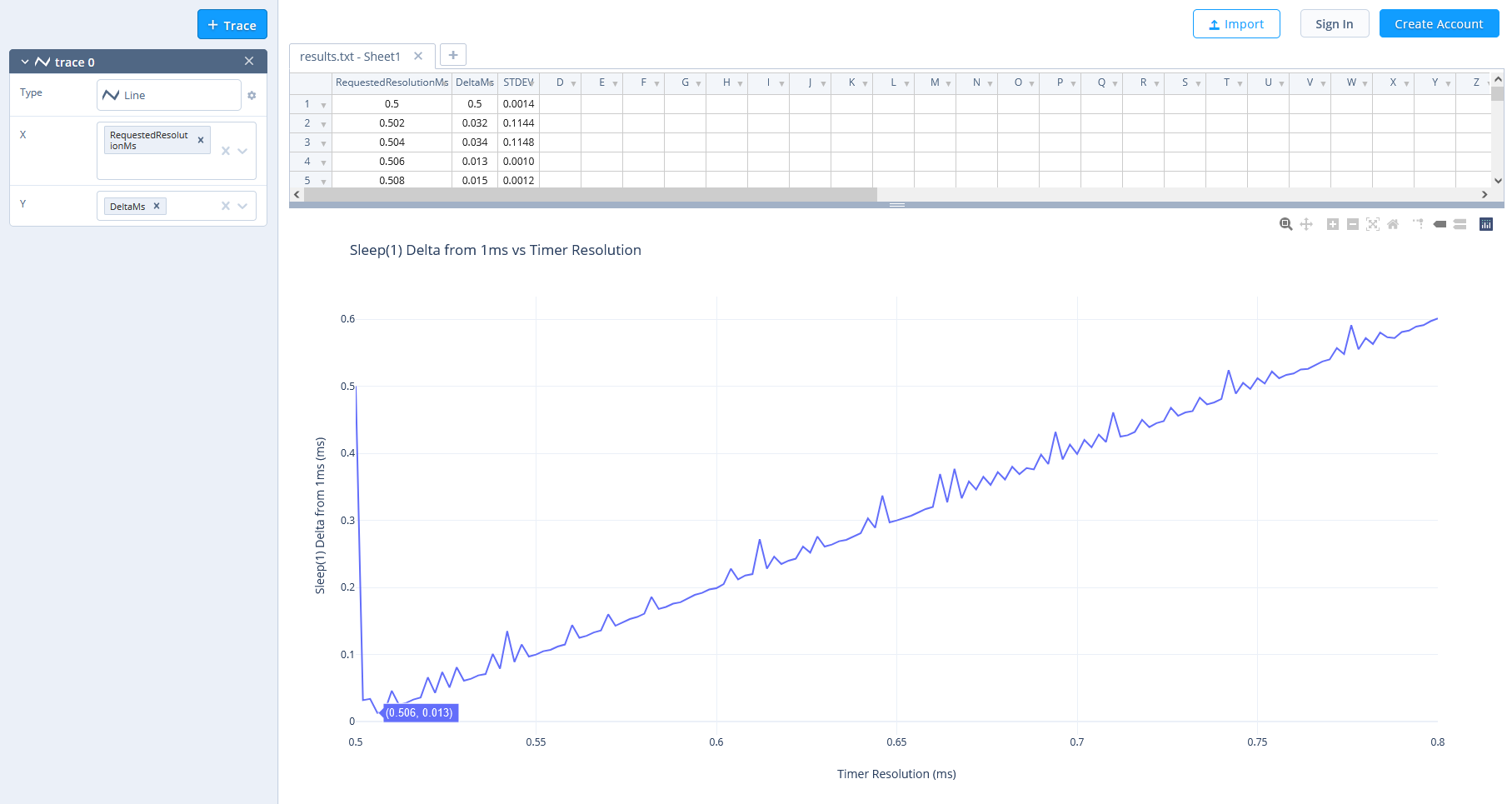
Performance metrics showing frame time improvements with Timer Resolution active
Getting started with Timer Resolution is incredibly simple:
That's it! The program will run in the background using minimal resources (less than 1MB of RAM).
Want Timer Resolution to start automatically with Windows? You can set it up using Task Scheduler:
SetTimerResolution.exe --resolution 5000 --no-consoleThis command sets the resolution to 0.5ms and runs the program hidden in the background. Perfect for "set it and forget it" performance.
Timer Resolution works flawlessly on:
For those interested in the details: Timer Resolution uses the NtSetTimerResolution API, which is a documented Windows function. This is the same method used by many professional applications to achieve precise timing. When you close the program, Windows automatically reverts to its default timer settings.
There are no drivers to install, no system files to modify, and no permanent changes made to your computer. It's completely reversible and safe.
Because Windows is updating its timer more frequently, your CPU wakes up more often, which increases power consumption slightly. On desktop computers and gaming laptops, this impact is negligible - usually less than 1-2 watts.
Laptop users focused on battery life should consider running Timer Resolution only during gaming sessions or when plugged into AC power.
Timer Resolution is perfect for:
Timer Resolution doesn't directly increase your FPS number. Instead, it improves frame consistency and timing. You'll see better 1% and 0.1% frame time lows (up to 30% improvement), which eliminates stuttering and makes gameplay feel much smoother. Raw FPS might not change, but the experience will be noticeably better.
Absolutely safe! Timer Resolution uses official Windows APIs and makes no permanent changes to your system. No drivers, no registry modifications, no file changes. When you close the program, everything returns to normal. It's been used by thousands of people without any issues.
When you run Timer Resolution, you'll see the current, minimum, and maximum timer values displayed. The included MeasureSleep tool can also benchmark your system to show the exact improvement. Most importantly, you'll feel the difference - games will feel smoother and inputs more responsive.
Yes! Timer Resolution works perfectly on Windows 11, as well as Windows 10, 8, 7, and even XP. It supports both 32-bit and 64-bit systems.
There is a small increase in power consumption (typically 1-2 watts) because the CPU wakes up more frequently. On desktops, this is completely negligible. Laptop users concerned about battery life should run Timer Resolution only when needed or when plugged in.
Yes, Timer Resolution needs to stay running to maintain the improved timer resolution. However, it uses very minimal resources (under 1MB RAM) and runs quietly in the background without affecting performance.
Definitely! You can configure Windows Task Scheduler to launch Timer Resolution automatically when your computer starts. Use the --no-console flag to run it hidden in the background.
SetTimerResolution is the main program that actually changes your timer resolution. MeasureSleep is a diagnostic tool that measures and benchmarks your system's timer precision. Most users only need SetTimerResolution.
The improvements are most noticeable in fast-paced, competitive games and time-sensitive applications. If you're playing slower-paced games or doing general browsing, the difference might be subtle. Use the MeasureSleep tool to verify the timer resolution has actually changed.
Yes, 100% free forever! Timer Resolution is open source software with no trials, no subscriptions, and no hidden costs. Download it once and use it as long as you want.
Timer Resolution is distributed as a portable application - no installation required. Simply download, extract, and run.
Open source software based on the project by valleyofdoom